The workspace
The timeline
Zoom, selection, playback, waveform vs. spectrogram, the beat strip, and notes.
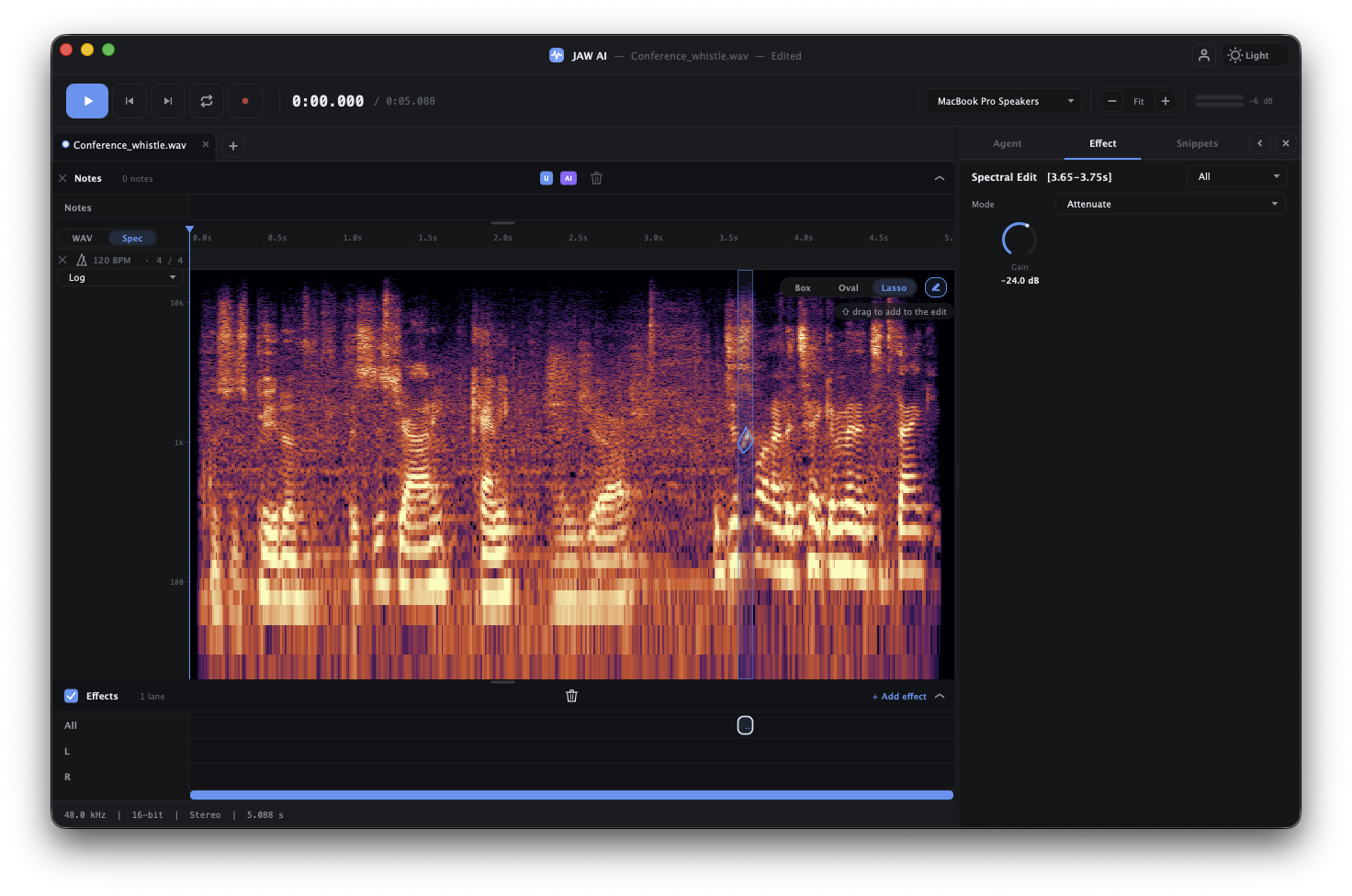
The timeline is where you view and edit audio. It shows a time ruler, the waveform (or spectrogram), a playhead, and — when you make one — a selection.
Zoom & scroll
Zoom in to work on fine detail and out to see the whole file. Scroll horizontally to move through time. Zooming keeps your selection and playhead in view so you don't lose your place.
Selecting a region
Click and drag across the waveform to select a time range. Most tools — and the AI agent — act on the current selection, or on the whole file when nothing is selected. This is the single most useful thing to know: select first to work surgically, deselect to work globally.
Playback & looping
Use the transport bar or the spacebar to play and stop. Turn on loop to audition a selection repeatedly while you tweak an effect.
Waveform vs. spectrogram
A WAV / Spec toggle switches the view between the amplitude waveform and a spectrogram (frequency over time). The spectrogram is the view you use for surgical, frequency-aware repair — see Spectral editing.
The beat strip
JAW AI can detect tempo and beats and draw a beat grid as a reference strip above the waveform, so edits can land on the beat. Use the analyze control on the strip (or just ask the agent to find the tempo).
Notes
Drop timestamped notes directly on the timeline — reminders for yourself or comments for whoever you send the file to. The agent can read your notes and add its own, so they double as a way to brief it (“fix the click I marked”).