Getting started
Setting up the AI agent
JAW AI is bring-your-own-key for the beta. Add an Anthropic (Claude) or OpenAI API key to switch the agent on.
JAW AI's agent runs on a large language model, and the app is bring-your-own-key (BYOK): you connect your own account with an AI provider, and usage is billed directly by that provider. JAW AI supports Anthropic (Claude) and OpenAI.
Add your key in Settings
Open Settings
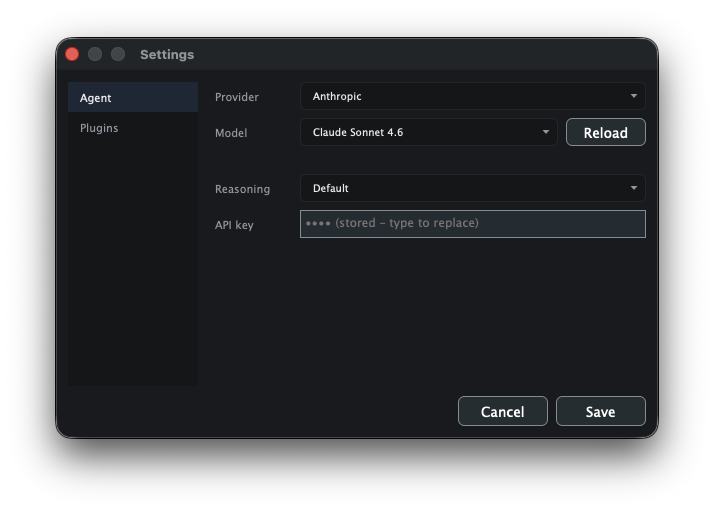
Choose File ▸ Settings… (⌘,) and select the Agent section.
Pick a provider and model
Choose Anthropic or OpenAI from the Provider menu. Once a key is entered, the Model list is fetched live from the provider so you can pick a specific model (and, where supported, a reasoning effort).
Paste your API key and save
Paste the key into the API key field and click Save. Changes apply immediately — no relaunch, and your conversation history is preserved.
Getting an Anthropic (Claude) API key
Claude keys come from the Anthropic Console. JAW AI defaults to a current Claude model when you select this provider.
Create or sign in to your Anthropic account
Go to console.anthropic.com and sign in (or create an account). You'll need to add billing / credits before the API will respond.
Create an API key
Open Settings ▸ API keys, click Create Key, and copy it. You won't be able to view the full key again, so paste it into JAW AI right away.
Getting an OpenAI API key
Prefer OpenAI? Keys come from the OpenAI platform dashboard.
Create or sign in to your OpenAI account
Go to platform.openai.com and sign in. Add a payment method / credits under Billing so the API is enabled.
Create an API key
Open API keys, click Create new secret key, and copy it. Like Anthropic, the full key is shown only once — paste it into JAW AI immediately.