Effects
Effects & the effect stack
Add non-destructive effects, tune them, reorder the stack, and layer in audio with Overdub.
Effects in JAW AI are non-destructive. Rather than altering your recording, each effect is a live layer on a stack that JAW AI re-renders continuously. You can stack, reorder, tune, bypass, or remove effects at any time, and your original audio is never touched until you export.
Adding an effect
Pick one from the Effects menu, or use the + Add effect picker. It applies to your current selection, or the whole file if nothing is selected. Or just ask the agent — “add a gentle compressor” — and it adds and configures the effect for you.
The Effect tab
Select an effect to open its editor, where you tune parameters with knobs, sliders, and — for EQ and dynamics — interactive curves. Adjust while looping a selection to hear changes in real time.
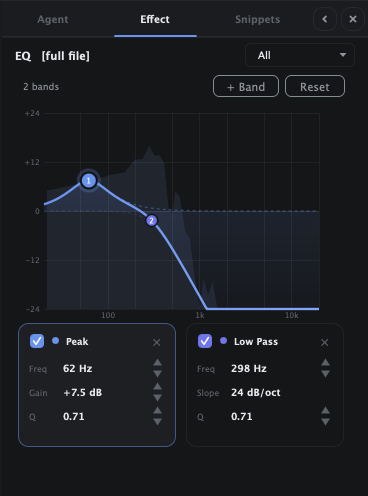
Built-in effects
JAW AI includes a full set of editing and mixing effects:
- Level & shape: Gain, Normalize, Fade In, Fade Out, Silence, Reverse.
- Dynamics: Compressor, Limiter, Noise Gate.
- Tone & filter: Parametric EQ, Ladder Filter, Saturation.
- Space & modulation: Reverb, Chorus, Phaser.
- Restoration: Neural Denoise — a machine-learning denoiser that's especially effective on speech.
- Layering: Overdub — mix another file or snippet in over your audio. See Layering audio with Overdub below.
Layering audio with Overdub
Sometimes you don't want to change a sound — you want to add one on top: a second take, a pickup line, a sound effect, a music bed, or room tone. The Overdub effect layers another piece of audio over your document, blended in without erasing what's already there.
Because Overdub is an effect like any other, the layer is fully non-destructive: it lives on the effect stack, sits on its own segment on the timeline, and stays undoable and re-editable. The layered audio is embedded in the .jaw project, so it travels with your work.
Adding an overdub
Position it
Put the playhead (or make a selection) where you want the layer to begin, then add Overdub from the + Add effect picker or the Effects menu. It drops onto its own lane segment at that point.Choose a source
In the Overdub editor, pick the audio to layer in: load a file (WAV, MP3, AIFF, FLAC, or Ogg) or choose a snippet from your library. Setting a source sizes the segment to the length of that audio.Blend with the Mix control
The Mix (dry/wet) slider crossfades the overdub against the existing audio — thinkoriginal × (1 − mix) + overdub × mix. At0%you hear only the original, at100%only the overdub, and in between they sit together. Use the play button to audition the source first.Trim to fit
Resize the lane segment to control how much of the layer plays; shrinking it truncates the overdub source.
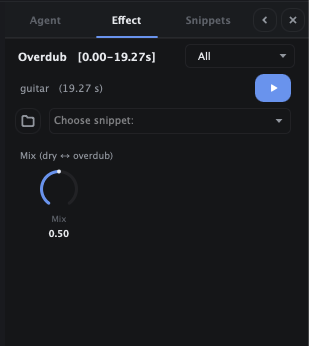
Overdubbing from a file
Any supported audio file can be an overdub source — drop in a recorded pickup, a stinger, or a backing bed. Need more than one layer? Add several Overdub effects and each becomes its own segment with its own source, mix, and length, so you can stack takes and build up a small arrangement without ever flattening the original.
Overdubbing from a snippet
For audio you reuse — an ident, a laugh, a whoosh, a signature riff — save it once in the Snippets library and pull it into an Overdub whenever you need it, instead of hunting down the file each time. It's the fastest way to drop a familiar sound onto the timeline at exactly the right spot.