The workspace
The interface
A tour of the window: title bar, transport, tabs, the timeline, beat and clip strips, and the side panels.
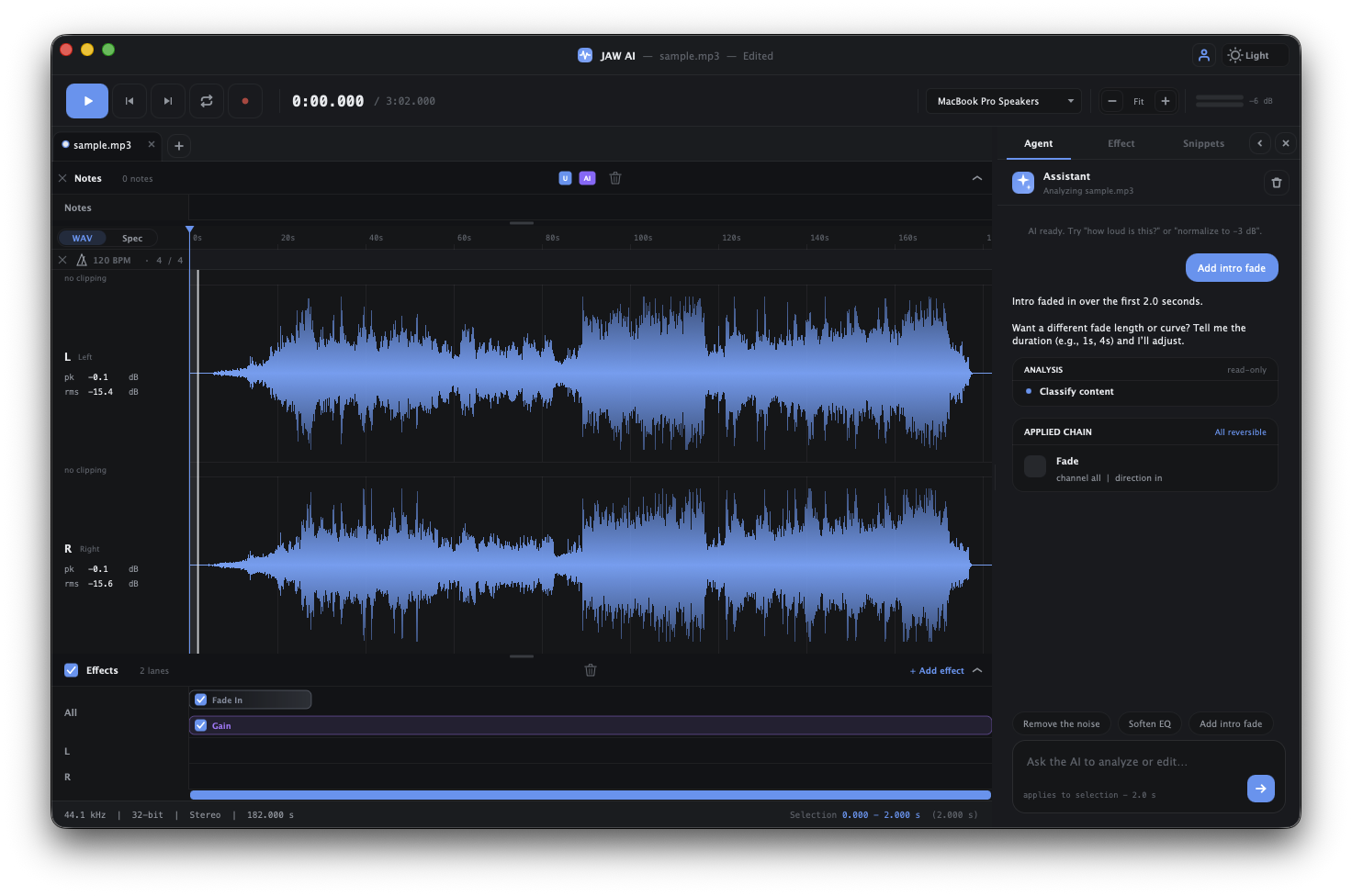
The JAW AI window has a few fixed regions around a central editing area. Here's what each part does.
Title bar
Two controls sit on the right of the title bar:
- Account — sign in or out of your JAW AI account. Signing in is optional; see Signing in & your account.
- Light / Dark toggle — switch the app between light and dark themes. The pill shows the theme it will switch to.
Transport bar
Play, pause, stop, and loop controls for the active document. You can also start and stop playback with the spacebar.
Document tabs & the timeline
Each open file gets a tab; the centre of the window is the timeline — the shared time axis where the waveform (or spectrogram) is drawn, with a ruler, playhead, and selection. See The timeline for everything it can do.
Beat strip
A tempo sub-band sits just under the time ruler. JAW AI can detect tempo and beats and draw a beat grid here so edits land on the beat — use the Analyze beat control on the strip (or just ask the agent to find the tempo). You can hide the strip when you don't need it.
Clip strip
A per-channel clipping display runs along the top of each waveform lane, flagging clipped regions live as you change effects — so a too-hot chain can't surprise you at export. The agent can also open it for you when it detects clipping.
Notes
You can drop timestamped notes directly on the timeline — a place to leave a reminder for yourself, or a comment to share with whoever you send the file to. Notes are two-way with the AI: the agent can read your notes to understand what you want (“fix the click I marked”) and can add its own notes back to point out what it found or did. See The timeline for how to add and use them.
Side panels (docks)
Panels dock to the left or right of the timeline and can be resized:
AI panel
The chat with the AI agent. Type a request in plain English and watch it run real edits on your audio, streaming its reply and the tools it uses as it works. Full detail in Working with the AI agent.
Effects
The effect stack — the list of non-destructive effect layers applied to the current document, shown as lanes you can add to, reorder, bypass, or remove. Add effects from the + Add effect picker or the Effects menu. See Effects & the effect stack.
Effect editor
Select an effect to open its inspector — the knobs, sliders, and (for EQ and dynamics) interactive curves that tune that effect's parameters. Adjust while looping a selection to hear changes in real time.
Snippets
Your reusable library of audio clips and effect chains. Drag an item onto the timeline to drop in audio or apply a whole saved effect chain at once. See Snippets.
Status bar
The footer shows readouts about the current document and a progress indicator while the non-destructive effect stack re-renders.